


Call to Action- Links: How-To
Click the "Toggle Side Panel" button in the upper left of the screen.

The "VT Components" box should be open first. Scroll down and drag a "Call to Action - Link" to your content area.
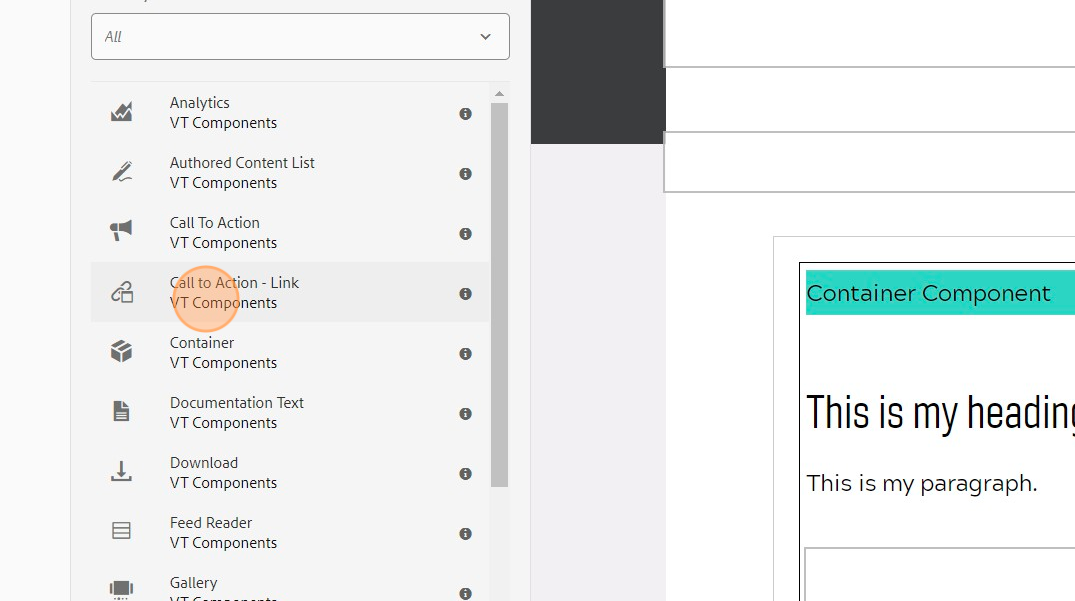
With your cursor over the Call to Action - Link component, left click.

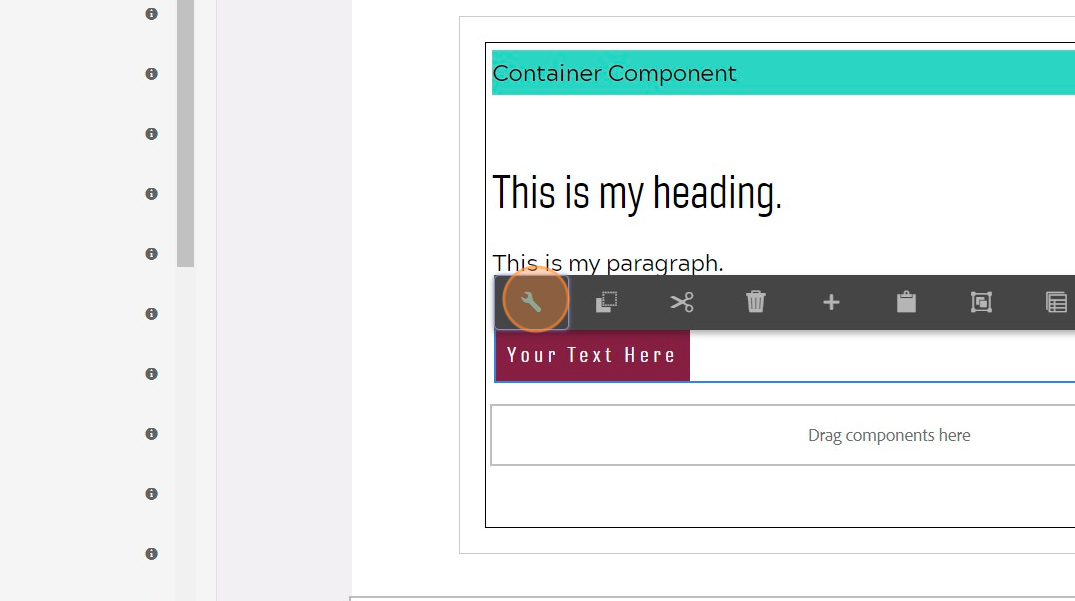
Click the "wrench" icon to go into the component's configuration options.
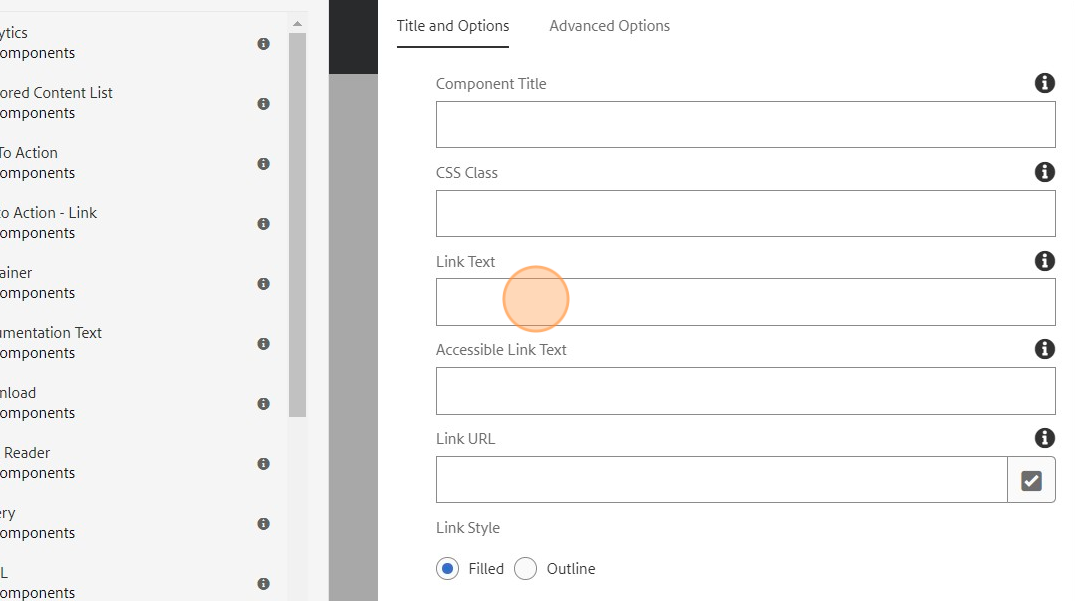
Input the text for your Link Text. Use a simple, verbal prompt such as "Register for Zoom", "See how the office can assist you", etc.
Insert URL into the Link URL Field.
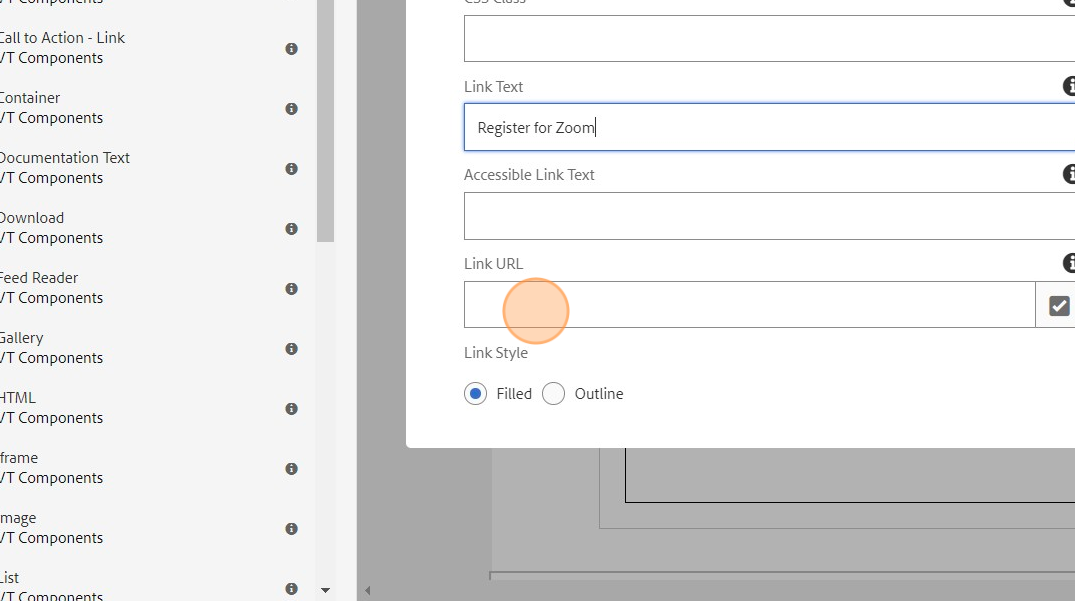
Leave the "Link Style" as the default "Filled" option for Call to Actions in the content area. If they are in the right column to link to secondary child pages, you would then choose "Outline". Now left click on the "Color choices" dropdown.
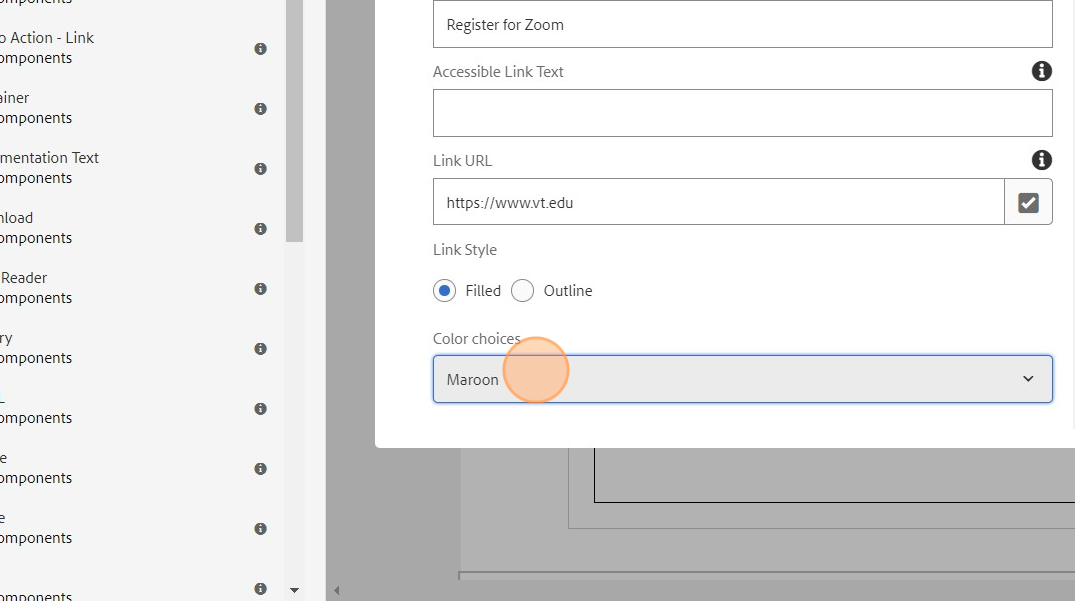
Click "Dark".

Click "Advanced Options".
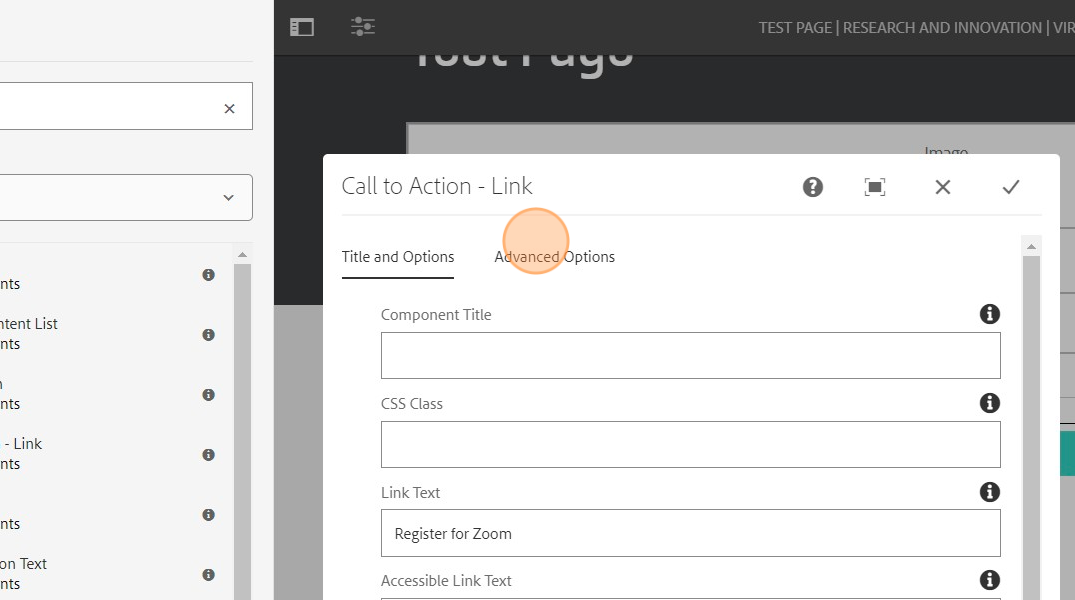
Depending on usage, you may center or right align the Call to Action - Link. Center it if it follows a few paragraphs of text, right align it if it follows a short section of 1 paragraph.
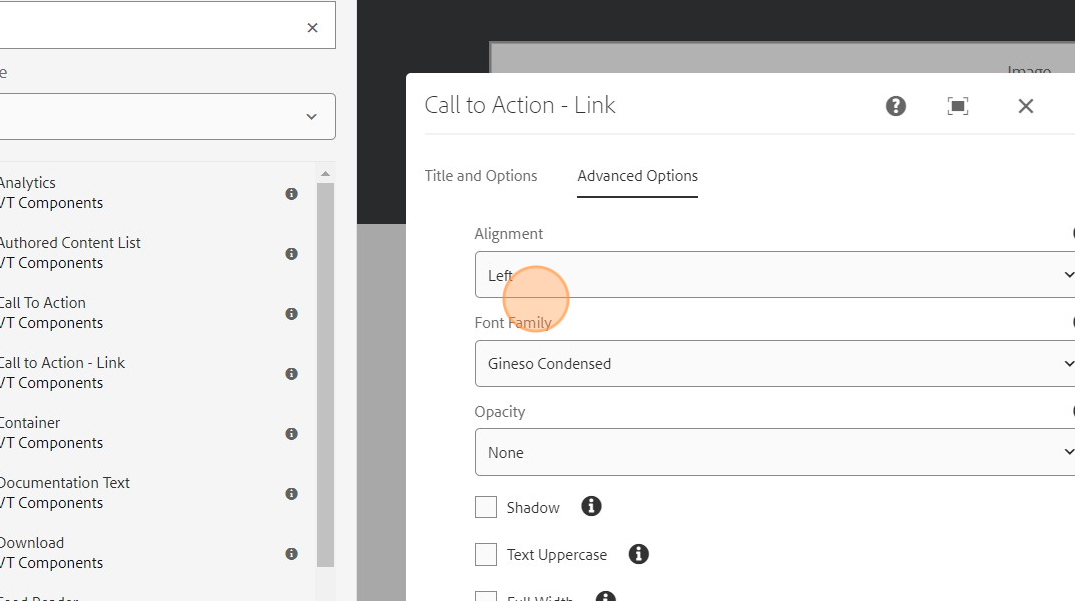
Example below: choosing "Right" as the value for Alignment.
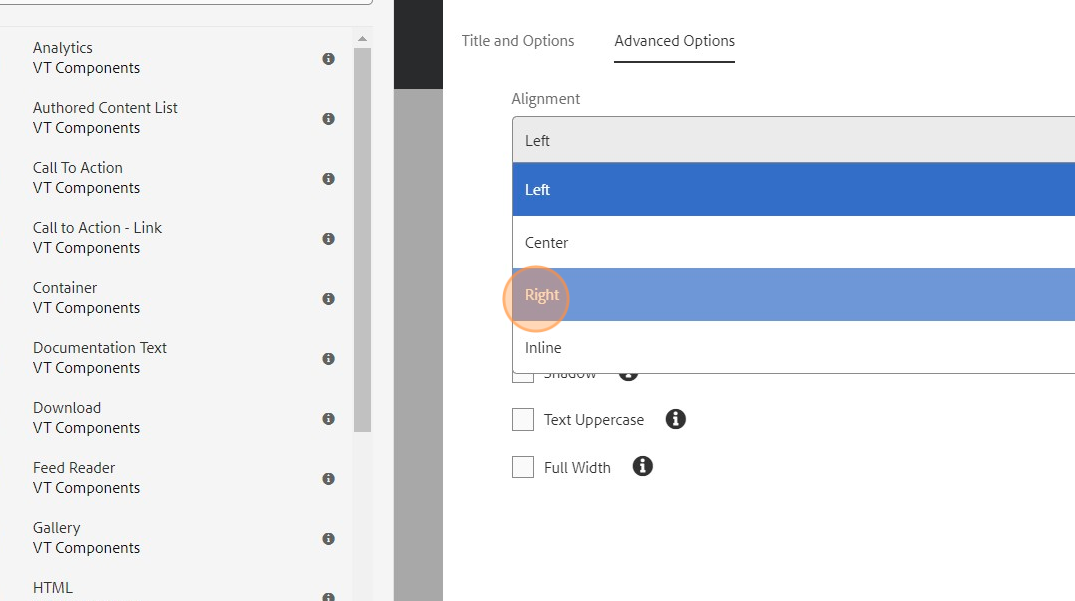
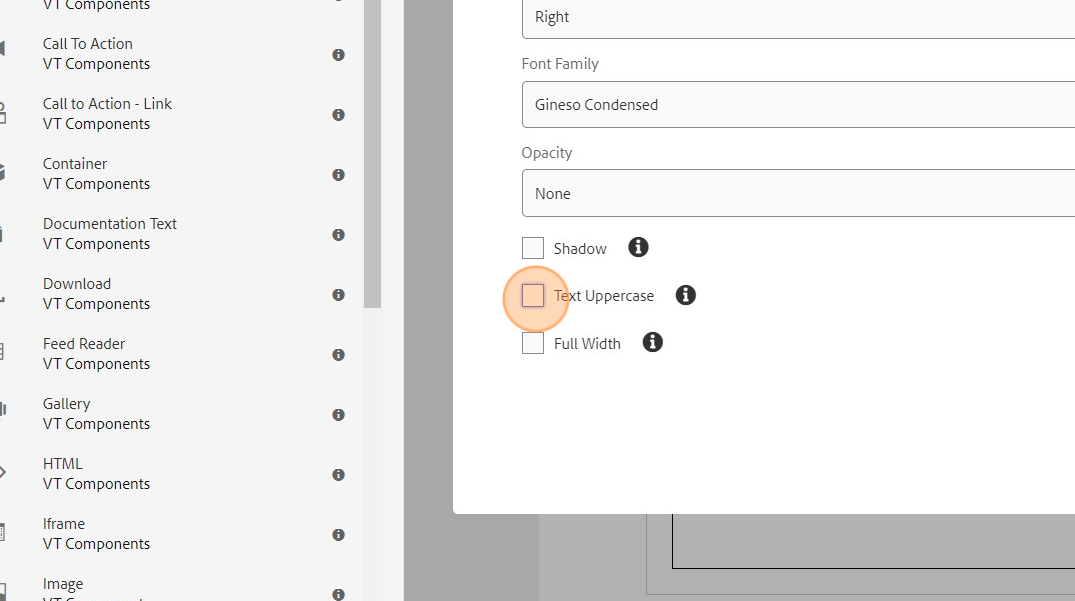
Click the "Text Uppercase" field.
Click the "checkmark" to accept changes.

Click "Preview" to make sure everything looks okay.
