


Event Pages
Event pages are utilized for promoting events that are put on by the Office of Research and Innovation and its units. Event pages are created under the main Research and Innovation events section and in the directory for that specific year. Each event can be tagged for its host so that it can be fed to unit pages in its respective event feed.
Event Pages Featuring One Speaker
Event pages are created to give greater visibility to events sponsored and administered by the Research and Innovation office. This includes special events, training, and seminars.
Structure
- Introductory Paragraph
- Event Date and Signup Details Box
- Speaker Information
- About the event series (if applicable)
Introductory Paragraph
The introductory paragraph should give a brief overview of the event. This should include topic of discussion, name of any prominent guest speakers, and the date of the event. This will be formatted with a Paragraph <p> tag.

Event Date and Signup Details Box
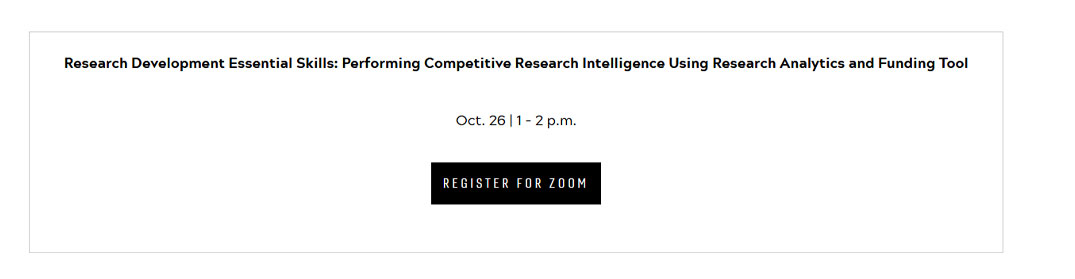
- Event name (Formatted with Paragraph tag <p>, in Bold font)
- Shorthand date | time of event (Formatted with Paragraph tag <p>)
- For in-person meetings, provide the meeting location with its address.
- Example:
- Fralin Hall Auditorium, Fralin Life Sciences Institute
- 360 W Campus Drive
- Blacksburg, Virginia 24061-0477
- Call to Action link button
- Filled, Dark, Uppercase, Center Alignment
- URL goes to Registration Page
- Text corresponds to what the registration is for. Examples:
- Register for Zoom
- Register for In-Person
- Register for Zoom
*Please note - if there is an in-person and zoom registration, you will need to use a multicolumn component to put the call-to-action link buttons in.
Event Host
This layout will be dependent if you have 1 or 2 hosts.
If One Host:
- Host heading (Heading 3 <h3> tag)
- Host name (Heading 3 <h3> tag)
- Host contact information (Paragraph tag <p>)
If Two Hosts:
This will be in the following order:
- Host Heading
- Columns featuring Hosts
- Image
- Host Name (Heading 3 <h3) format, linked to their bio page or department page)
- Host Job Title (Paragraph <p> format)
To create the column cards that feature the hosts:
- Drag over a container component and then drag over multi-column component inside the container. Set the container CSS Class property to “colwrap”
- Drag over container component to each column
- Drag over an image component and text component to each column. Text within text component will be styled as:
- Host heading
- Host name
- Host contact information
Speaker Information
This layout will be dependent on if you have a single speaker or multiple speakers.
Single Speaker
For a single speaker, the layout would showcase a heading, image, and bio paragraph of the speaker in a multi-colum format.
Column One
|
Column Two
|

Example: speaker information in a two column format using the multi-column component, housing image and text components.
Event Pages Featuring Multiple Speakers
Event pages are created to give greater visibility to events sponsored and administered by the Research and Innovation office. This includes special events, training, and seminars.
Structure
- Introductory Paragraph
- Event Date and Signup Details Box
- Host Information
- Speaker Information
- About the event series (if applicable)
Introductory Paragraph
The introductory paragraph should give a brief overview of the event. This should include topic of discussion, name of any prominent guest speakers, and the date of the event. This will be formatted with a Paragraph <p> tag.

Event Date and Signup Details Box
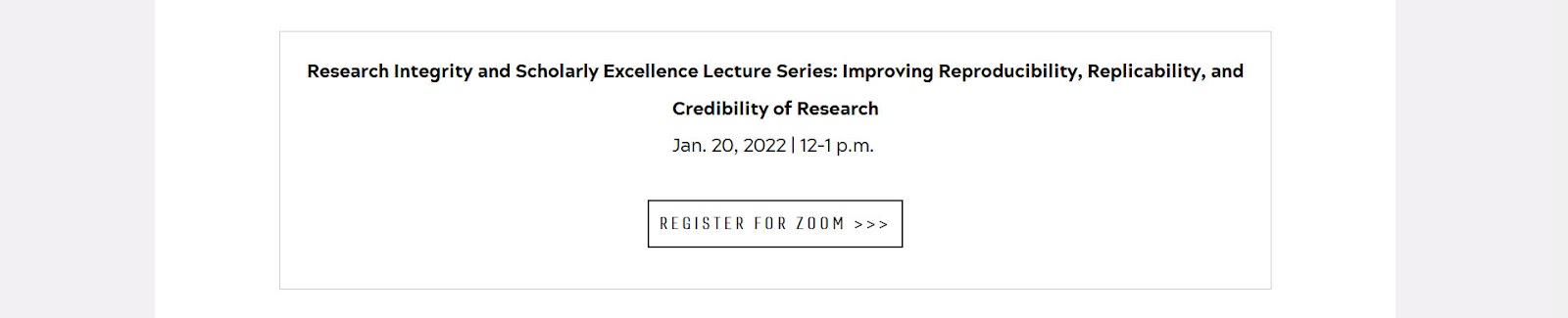
- Event name (Formatted with Paragraph tag <p>, in Bold font)
- Shorthand date | time of event (Formatted with Paragraph tag <p>)
- Example:
Jan. 20 | 8 - 9 a.m.
- Example:
- For in-person meetings, provide the meeting location with its address.
- Example:
Fralin Hall Auditorium, Fralin Life Sciences Institute
360 W Campus Drive
Blacksburg, VA 24061-0477
- Example:
- Call to Action link button
- Filled, Dark, Uppercase, Center Alignment
- URL goes to Registration Page
- Text corresponds to what the registration is for.
- Examples:
- Register for Zoom
- Register for In-Person
- Examples:
*Please note - if there is an in-person and zoom registration, you will need to use a multicolumn component to put the call-to-action link buttons in. The example below shows the year in the date, something we only do if there are multiple years showcased in an event listing (very common for Nov 01- Dec 18 time period).
Speaker Information Without Bio
This layout will be dependent on if you have a speaker with a bio.
With Bio
For showcasing speakers with bios, the layout would showcase a heading, image, and bio paragraph of the speaker.
- Container
- Image component for first speaker
- Text component (include Name and bio)
- Image component for second speaker
- Text component (include Name and bio)
- Repeat for each speaker
- HTML formatting would be
- Speaker heading (Heading 2 <h2> tag)
- Speaker name (Heading 3 <h3> tag)
- Bio information (Paragraph <p> tag
- HTML formatting would be
Example on next page.

Example - Speaker with a bio.
Multiple Speakers Without Bios
Multiple speakers will make use of the multi-column component. 4 columns is the maximum number of columns going across. If there is bio information, it is recommended to NOT use a multi-column component and to simply use a container and stack the speakers in a single column.
Example:
- Container
- Multi-Column Component
- Left Column
- Image component for first speaker
- Text component: Name (first and last linked to bio page or website) and Job Title
- Right Column
- Text component featuring their bio information
- Left Column
Repeat for each speaker.
Example above: the layout of content for multiple speakers presentation. For each speaker after the first presented speaker, a border would be applied to the top of each additional speaker container. This would be applied by Bobby before publish.
About the Event Series (if applicable)
This will be a standard heading and paragraph.
- The Heading will be a Heading 2 <h2 tag.
- The text below the heading will be a standard paragraph <p> tag.